Shopify/Ecommerce
Shopify Store Launch Checklist: What to Check Before You Open
By Fidyan Ahmed, founder · Published · Last updated · 7 min read
On this page
Opening a Shopify store is a little like opening a shop on a real street. The sign can be perfect, but if the till does not work or the back door is locked, the first customers leave unhappy. This Shopify launch checklist walks through what to check before you remove the password. It is written for owners who built the store themselves or with a small team, and who want a calm launch instead of a scramble.
Key takeaways
- Own the domain and set it as the primary address before launch.
- Place real test orders on a phone, then refund them, and read every email.
- Match shipping and tax settings to real parcels and real addresses.
- Fill every product page fully. Do not launch with placeholder text.
- Confirm tracking works before you spend anything on ads.
1. Domain, store name and basic settings
Start with the parts customers never think about until they look wrong.
Own the domain
Buy the domain in your own account, not a freelancer's. Connect it in the Shopify admin under Domains and set it as the primary domain. Shopify then redirects the myshopify address to your own address, so search engines and shared links settle on one URL. If you ever move platforms, a domain you control is the one asset that travels with you. The website ownership checklist covers what else should sit in your name.
Store details
Open Settings and check the store name, the sender email, the legal business name, the address and the store currency. These show up on order confirmations, invoices and some policy pages. A typo here gets copied into every receipt you send.
Staff accounts
Give each person their own staff login with only the permissions they need. Do not share the owner login. When someone leaves, you can remove one account without changing the master password.
2. Products and collections
Product pages are where people decide. Go through every product with fresh eyes.
Product page basics
Each product should have:
- A clear title that uses the words a buyer would search, not an internal code.
- Real photos that show the item from more than one angle, with a consistent background.
- A description that answers the questions people actually ask: size, material, what is in the box, how to care for it.
- Correct price, compare at price only if it is honest, and inventory tracking turned on.
- Weight filled in, because shipping rates often depend on it.
If you sell variants, open each one. A missing photo on the blue option or a zero inventory on the medium size is easy to miss when you only look at the first variant.
Collections that make sense
Group products the way a customer browses, not the way your warehouse shelves them. A small catalog might only need a handful of collections. Write a short intro at the top of each one that tells people what is inside. Our guide to category page SEO for small catalogs goes deeper on collection copy that ranks without stuffing.
Search and filters
Search the store for three things a customer would type. If the results are empty or odd, fix product titles and tags first. Filters should only show options that exist, otherwise people click into empty pages.
3. Checkout, payments and taxes
Checkout is the till. Test it like you do not trust it.
Payment providers
Turn on the payment methods your customers expect, then complete the provider's verification steps. Some providers hold payouts until identity and bank details are confirmed, so do this early, not the night before launch.
Taxes
Tax rules depend on where you are and where you sell. Shopify can calculate a lot automatically, but you still need to register where required and switch on collection for those regions. If you are unsure, ask an accountant who knows online sales in your country or state. Do not guess and fix it later.
Checkout settings
Decide whether customers must create an account, whether you collect phone numbers, and what marketing consent checkbox text says. Keep the checkout short. Every extra required field is one more reason to leave.
4. Shipping and delivery
Shipping is where many first orders go wrong.
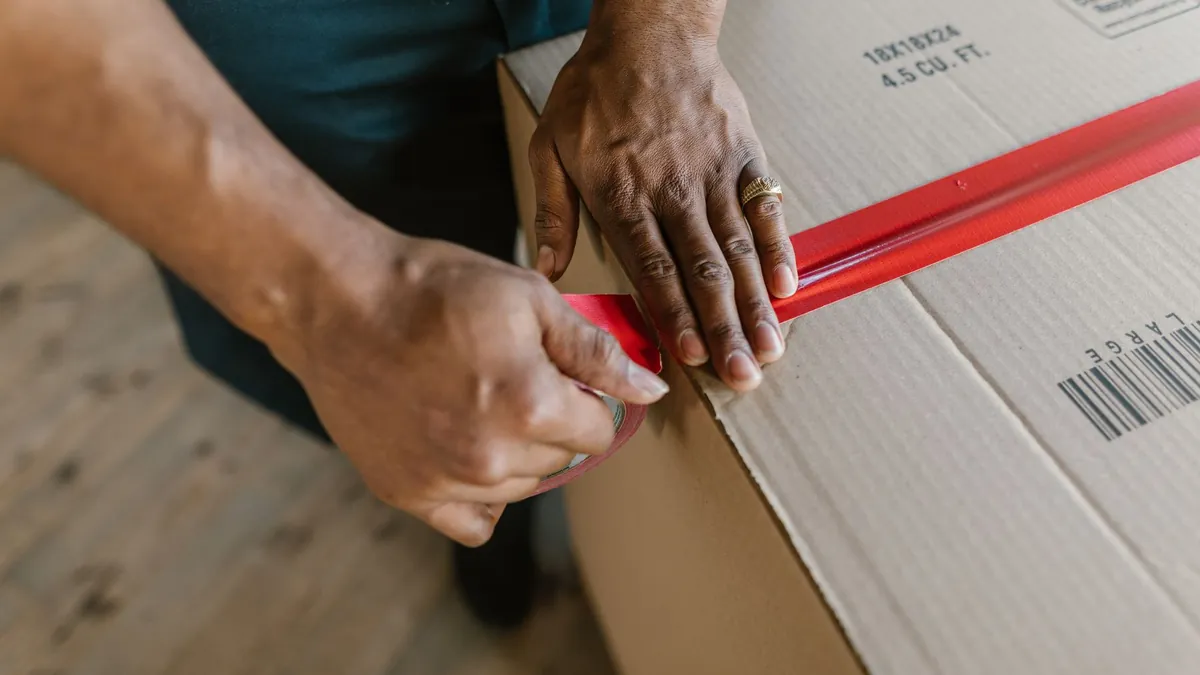
- Pack a real product, weigh it, and measure the box.
- Create shipping zones only for places you actually ship to.
- Build rates from the real packed weight, not the bare product.
- Test the checkout with addresses in a near zone and a far zone.
- If you offer local pickup or local delivery, test those options too.
Write a short shipping page that says where you ship, how long handling takes, and what happens if a parcel is lost. Link to it from the footer and from product pages.
5. Policies and trust pages
Shopify can generate starter policy text. Treat it as a draft. Read it, edit it to match how you actually work, and publish refund, privacy, terms and shipping policies. Then add the basics that make a new store believable:
- An about page that says who runs the store and where you are based.
- A contact page with a real email address and, if you offer it, a phone number.
- Clear return steps. People buy more calmly when they know how to send something back.
Avoid badges and claims you cannot back up. A store with honest, specific pages earns more trust than one covered in generic seals.
6. Speed and mobile layout
Most visitors will see the store on a phone. Open the home page, a collection and a product on your own phone using mobile data. Ask yourself:
- Does the product photo and price show without a long wait?
- Can you tap Add to cart with a thumb?
- Does the page jump around as images load?
Large uncompressed images and too many apps are the usual causes of a slow theme. Remove apps you installed while testing and no longer use, since some leave scripts behind. Run a page through the free Speed Checker to see what loads slowly, then fix the biggest image first.
7. SEO basics before launch
You do not need an SEO campaign on day one, but a few settings are hard to fix later.
- Write a unique title and meta description for the home page, collections and top products.
- Give every image descriptive alt text.
- Keep product URLs short and readable. Changing them after launch means redirects.
- Add structured data if your theme does not output it. The free Schema Generator can help you check what product markup should look like.
Once the store is live, submit the sitemap in Google Search Console so Google can find the pages.
8. Tracking and analytics
Before you spend anything on ads, make sure you can see what happens. Connect analytics, check that a test purchase records as a purchase, and confirm the order value is passed correctly. If you run ads, test the conversion events with a real order you later refund. Without this step, every later decision about ads is a guess. Our analytics and tracking service covers this setup if you would rather not do it yourself.
9. The test order day
Set aside one session for real test orders. On a phone and on a laptop:
- Find a product through search and through a collection.
- Add two different items, one with a variant.
- Apply a discount code if you plan to use them.
- Check out with a real card or the provider's test mode.
- Read the confirmation email. Check the logo, the address and the links.
- Fulfil the order in the admin and read the shipping email.
- Refund the order and confirm the refund email makes sense.
Write down every rough edge, even small ones like a cut off product title in the cart. Fix them, then run the flow once more.
10. Launch day and the first week
Remove the password when the checklist is done, not when the calendar says so. On launch day, watch the first orders closely, reply to messages fast, and keep a short list of anything customers ask twice. Those questions usually point to a product page or policy that needs a clearer sentence.
In the first week, check that orders, payouts and inventory match. Look at which pages people visit and where they leave. Small fixes in week one are cheaper than a redesign in month six. If conversion is the next worry, our ecommerce conversion tips are a good next read.
When to bring in help
Plenty of owners launch on their own. Help makes sense when the theme cannot show your products the way buyers need, when you are moving an existing store with years of URLs, or when you simply want someone to run the checklist with you. See Shopify development and Shopify store setup for how ENZORA approaches it, or start a project and tell us what you sell. We will reply with fit and next steps.
Questions
How long should I test a Shopify store before launch?
Long enough to place real orders on a phone and a laptop, refund them, and read every email a customer would get. For most small catalogs that is a few focused sessions, not weeks. The goal is to find the broken step before a stranger does.
Should I remove the store password before or after I add products?
After. Remove the password only when every product has photos, a description, a price you checked, inventory, weight and shipping settings. A half empty store teaches the first visitors that the shop is not ready, and some of them will not come back.
Do I need a custom domain to launch on Shopify?
You can sell on the default myshopify address, but a domain you own looks more trustworthy and keeps your links stable if you ever change platforms. Buy it in your own name, connect it in Shopify, and set it as the primary domain so every page uses one address.
What is the most common launch mistake you see?
Shipping settings that do not match the real parcel. A rate built for a light item gets applied to a heavy one, or a region is left out, and the first orders either lose money or fail at checkout. Weigh real packed products and test rates to a few real addresses.
Is a Shopify theme enough, or do I need custom work?
Many stores launch well on a clean theme with good photos and clear copy. Custom work makes sense when the theme fights your catalog, for example product options it cannot show, or a buying flow your customers need that the theme does not support.
Was this helpful?
Related ENZORA services
Want help with your website?
Get a fixed quote from the ENZORA team. We work with businesses worldwide.