Performance
Is Your Website Secure? A Plain English SSL and Security Check
By Fidyan Ahmed, founder · Published · Last updated · 7 min read
On this page
A website security check is a short list you can run without being an engineer. Confirm the address uses a secure connection, look for extra browser rules, remove old plugins and public backups, and see whether Google warns people about the site.
Key takeaways
- A secure address protects the connection. It is not a character reference.
- Security headers are extra browser rules, not a substitute for updates.
- Old plugins and public backup files are common weak spots.
- Check once a month and again after you change the site.
What the padlock means
People still say "padlock" when they mean a secure page. What matters is the address. It should start with https. Google's technical SEO guide, checked 23 Nov 2026, says Google recommends https for your safety and your visitors' safety, and that a site still using plain http can be marked not secure in Chrome. The page experience notes also ask whether pages are served in a secure way.
That mark is about the connection between the browser and your site. It means a person on the same coffee shop network has a harder time reading the form as it is sent. It does not mean your prices are fair, your reviews are real, or the page is free of harmful files. A thief can buy a certificate too. Treat https as step one, not as the whole check.
Look at every page you send customers, not only the home page. A form on an old http address can still pop a warning even when the home page looks fine. Fix the whole site, then send people to the secure address.
Picture a roofer who texts a link that starts with http. The homeowner sees a warning and calls a different company. The roof was never the problem. The link was. He updates the text to the https address the same day.
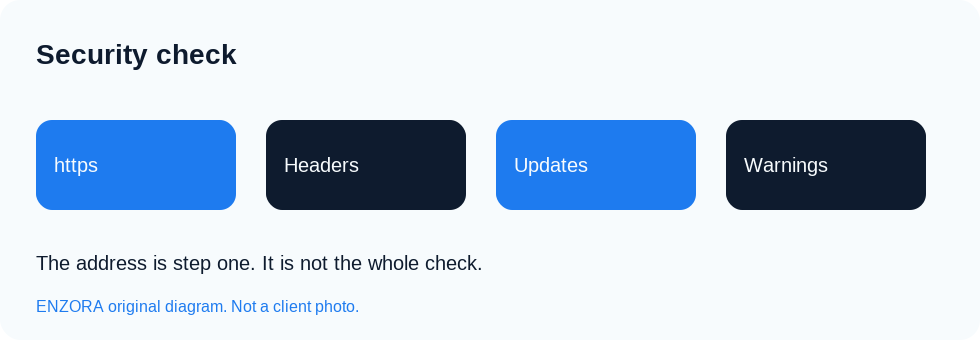
This week, open your site on a phone and read the address before the name. If it does not start with https, call the person who hosts it and ask them to turn that on. The security check diagram is the order of the rest of this list. The SSL and Security Headers Checker is the tool that reads those details for you.
Until it is live, run a Website Audit and a Compare Websites check. Compare includes a plain security line.
Security headers explained
After https works, the site can send extra instructions called headers. A strict transport header tells the browser to keep using the secure address for your site. Mozilla documents that header as Strict Transport Security. A content security policy tells the browser which scripts are allowed. That second header is easy to get wrong, so test the site after you add it. A broken policy can block your own form.
You do not need to memorize the codes. You do need to know they exist and to ask your host or developer which ones are on. The OWASP secure headers project keeps a plain list of headers people commonly set. Use it as a menu of questions, not as a score to chase.
Headers do not update an old plugin. They do not remove a password file you left in a public folder. Do the cleanup either way. If a header is missing, put it on the fix list. If the site breaks after a new header, turn that one change back and ask why before you add three more.
Picture a booking form that worked on Monday and fails on Tuesday after a new script rule. The rule was tighter than the form. The owner turns that rule off, writes down what broke, and asks for a version that allows the form and still blocks stray scripts. One change at a time is how you learn which line mattered.
This week, ask your host for a list of security headers already set. Save the reply with your logins. You will want it the next time someone offers a "security plugin" you do not understand.
Exposed files and outdated plugins
A public folder should hold pages and images, not a zip of the whole site and not a spare copy of the password file. Those leftovers are easy to forget after a move or an update. Ask the person who built the site to look for backup files, old exports, and folders you do not recognize. Remove what you do not need.
Plugins, themes, and the site software itself need updates. An unused plugin is still a door if it is installed. Delete the ones you turned off last year. Update the ones you use, on a copy of the site first if you have one. Then click through the form and the phone number. Website maintenance is the ongoing version of this habit. Security and backups covers the backup side so an update is not your only copy.
Write down who can log in. Remove people who no longer work with you. A former helper with an admin login is an exposed file of a different kind. Give each person their own login so you can turn one off without locking yourself out.
Picture a cleaner who still has a plugin from a holiday popup three years ago. She does not remember installing it. The plugin has not been updated. She deletes it and checks the home page. Nothing she needs was coming from that plugin. The site is smaller and one less thing can break.
This week, list every person with a login and every plugin you do not recognize. Remove the ones with no owner. The Tech Stack Detector is the tool that names what the public site appears to run.
Blacklists and malware
A warning page in front of your site means people may leave before they read a word. Google's notes on abuse, updated 10 Dec 2025, point to malware, unwanted software, and Safe Browsing warnings. You can look up a domain in the Safe Browsing status check. A clear result is not a forever promise. Check again after you install something new.
If a warning appears, do not ignore it and do not only click past it on your own computer. Ask your host to scan the files. Update or remove the software they flag. Change passwords if they say an account was involved. Then ask for the warning to be reviewed once the files are clean. Keep a backup from before the trouble only if you know that backup is clean. Restoring a bad backup brings the problem back.
Do not download a random "cleaner" from an ad while you are scared. Use the host, or a person you already trust, and the notes from Google's own pages. The speed guide is a different problem. A slow site is not the same as a flagged site. Fix the warning first.
Picture a baker whose site suddenly shows a warning about unwanted software. She calls the host before she edits files. They find an old plugin. She removes it, they rescan, and she requests a review. She also changes the admin password. The warning is a fire alarm, not a reason to rebuild the whole shop in one night.
This week, search your domain on that Safe Browsing page and save a note of the date and the result. If it is not clean, stop sending ads to the site until it is.
Monthly security routine
A routine beats a panic. Once a month, open the home page and one form page and read the address. Click the phone number. Look for a browser warning. Check that a backup finished. Update software you still use, and remove what you do not. Write the date in a note.
Do the same check after you add a plugin, a new form, or a new person. Big changes are when leftovers appear. If something looks wrong, pause and ask. The outage guide is the next page if the site will not load at all.
| Monthly step | What good looks like |
|---|---|
| Address | Home page and forms use https |
| Warning | No Safe Browsing warning on your domain |
| Logins | Only current people have access |
| Plugins | Unused ones removed, the rest updated |
| Backup | You can name the date of the last good copy |
This week, put the routine on the first Monday of the month. Do the first run now so the next one is a repeat, not a puzzle.
Want us to fix this for you? Get a free fix plan.
Questions
Does the lock icon mean my business is safe?
No. A secure address means the connection to that page is encrypted. It does not prove the company is honest, and it does not prove the page is free of harmful software. Google says sites still on a plain http address can be marked not secure in Chrome. Start there, then keep checking.
What is a security header?
It is an instruction your site sends to the browser. One common instruction tells the browser to keep using a secure connection. Another limits where scripts may load from. Headers do not replace updates. They add a rule on top of a site you already maintain.
What files should not sit in the public folder?
Do not leave a zip of the whole site, a copy of a password file, or an old backup where anyone can download it. Ask your host or the person who built the site to look. Remove unused plugins and themes. An old plugin you forgot can be the weak spot.
How do I know if my site is on a warning list?
Open the page in a browser and read any warning before you click through. You can also search Google's Safe Browsing status for your domain. Google explains malware and unwanted software in its Search Central notes. If a warning is real, fix it before you run ads to that page.
How often should a small business check?
Once a month is a practical habit for a small site, plus a check after any update or new plugin. Look at the address, the warning screen, and whether backups ran. Write the date down. A check you do not record will be skipped the next busy week.
Was this helpful?
Related ENZORA services
Want help with your website?
Get a fixed quote from the ENZORA team. We work with businesses worldwide.