SEO
Image SEO for Small Business Websites
By Fidyan Ahmed, founder · Published · Last updated · 7 min read

On this page
Image seo is the plain work of describing photos and keeping them light. Google's image guide says to use descriptive file names, titles, and alt text, and it lists common formats including WebP and AVIF. A huge photo with no words still fails a person on a phone.
Key takeaways
- Describe informative photos in alt text. Skip a novel on decorative art.
- Shrink files so the page can show the phone number quickly.
- WebP and AVIF are formats Google's image guide lists.
- Set width and height so the layout does not jump.
Alt text that helps
Alt text is the words that stand in for the image. Google's image guide says alt text helps search engines understand the photo, and that it also acts as the link text when the image itself is a link. Write for a person who cannot see the file. "Crew replacing a water heater in a garage" is useful. "Image 1234" is not. A keyword pile is not either.
The W3C images tutorial separates informative images from decorative ones. If the photo carries meaning, describe it. If it is a flourish, empty alt text lets assistive tech skip it. Do not describe a decorative line as "best plumber near me" just to add a phrase.
Do not put the only phone number inside a picture. A person and a crawler both need the number as text. The alt text is not a place to hide a claim you would not say out loud.
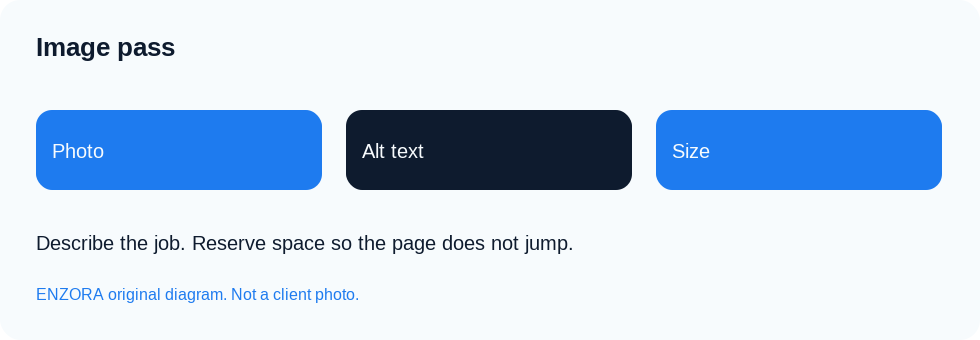
Picture a roof photo. Good alt: "New shingles on a one story house after a hail repair." Weak alt: "roof roofing roofer emergency." The first one could be read to someone. The second one is a list. The image label diagram is photo, short description, then the file. Use it while you upload.
This week, read the alt text on the first three images of the home page. Rewrite any that are a file name or a keyword list. Leave decorative icons with empty alt if they add no fact.
File size and speed
A photo straight from a phone can be far larger than the box on the screen. The page then waits, and the call button waits with it. You do not need a lab to notice. Open the page on a phone using cellular data. If the headline arrives and the button arrives late, the photo is a suspect.
Google's Core Web Vitals guide explains loading, response, and visual stability in plain terms. It says to strive for a CLS score of less than 0.1. A heavy file is not the only cause of a slow page, but it is a cause you can see. Resize the photo to the space it fills. Keep a sharper original in your own files if you want detail later. Do not upload the camera original as the only version.
The Image Alt and Size Checker reviews alt text and image weight. The Speed Checker tells you how the page feels on a phone. It does not write alt text for you. Run both on the home page before and after you replace one huge photo, so you are comparing a real change.
The speed notes cover measurement on a production build. The hosting details in that guide are older. The idea still helps: measure the page you ship, not a guess. Website Speed Optimization is the service if the files are stuck in a theme you cannot edit.
This week, find the largest photo on the home page and replace it with a smaller copy of the same picture. Then load the page again on a phone.
WebP and AVIF
Google's image guide says Google Search supports several formats in an img element, including JPEG, PNG, WebP, SVG, and AVIF. It also says the file extension should match the type. You do not have to pick a fashion. You have to pick a format the page really serves and that still looks like the job.
WebP and AVIF are the modern choices many sites use because the file can be smaller at a similar look. A picture element can offer one of those and fall back to a JPEG or PNG. The image guide shows that kind of pattern. If your editor only exports JPEG, a careful JPEG is fine. A broken AVIF that nobody can see is not a win.
Do not convert a logo into a photo format that blurs the words. A simple logo can stay SVG or PNG if that is what stays sharp. Photos of jobs are the files that usually need the shrink.
The Image Compressor makes a lighter copy after you swap formats. Use the Speed Checker after the swap. If the page does not feel faster and the photo looks worse, keep the clearer file. Vanity formats are not the goal.
This week, export one job photo as the format your site already uses, at the display size. Confirm the extension matches. Do not batch convert the whole library until that one photo looks right on a phone.
Width and height to stop layout jumps
When a photo has no width and height, the browser does not know the box until the file arrives. The text jumps. On a phone, the call button can move under a thumb. That jump is layout shift. Google's Core Web Vitals guide asks you to strive for a CLS score under 0.1. The layout shift guide is the practical page for how to reserve space.
Set the width and height to the real pixel size of the image, or to the ratio you will display. Do not set a tiny size and then stretch the file with a style that lies. The reserved box should match the picture. A wide truck photo and a tall portrait do not share one square hole unless you crop them on purpose.
Check the page while it loads, not only after it settles. If the button moves, the box is wrong or a late banner is the cause. Fix the image box before you add another script.
The Mobile Friendly Test checks whether a page fits a phone and whether the number can be tapped. It is not a full lab CLS test. Use it as a basic pass, and use your eyes for the jump. Say so if you report the result to a partner.
This week, add width and height to the hero image if they are missing. Reload on a phone and watch the call button. It should stay put.
Photo ideas for trades
Use photos of work you did. A clean panel with the cover on, a finished roof, a driveway before and after if the customer agreed, a truck with your name. Skip stock families and skip a messy open electrical panel as a thrill. Do not post a job the customer asked you not to share.
Name the file with the job, not with a camera default. "drainrepair.jpg" is easier to manage than a string of digits. The image guide likes descriptive file names. Do not stuff five cities into the file name.
Put the best photo near the top, but not so large that it hides the number. One clear photo beats a slideshow that loads eight roofs before the headline. More photos can sit lower on the page.
| Photo | Use it when | Skip it when |
|---|---|---|
| Finished job | The customer agreed and the work is yours | The site is still a mess or the face is a stranger |
| Truck or shop | The name is readable | The number is only inside the picture |
| Before and after | Both states are real and labeled | The pair is a slider that hides the button |
| Portrait | The person agreed | It is a stock smile |
The crawl guide is the partner if images are broken links rather than heavy files. A missing image is a different fix from a large one.
This week, replace one stock photo with a job photo you have rights to use. Write the alt text in one sentence. Check the page on a phone before you do the next one.
Next step
Want us to fix this for you? Get a free fix plan. Send the page with the heavy photo. We will look at the file, the alt text, and the jump. We will not invent a speed score you did not measure.
Questions
What is image SEO in plain words?
Image seo is how you name, describe, and size the pictures on a page. Google's image guide says to use descriptive file names, titles, and alt text so the photo matches the page. It is not a trick to hide keywords in a picture. A real photo of the job, with a true description, is the whole idea. Decorative lines do not need a long description.
Does every image need alt text?
Informative photos do. The W3C images tutorial explains that a photo which adds meaning needs a text alternative. A purely decorative shape can use empty alt text so a screen reader skips it. Do not write a keyword list into every alt. Describe the picture a customer would want: the job, the place if it matters, and nothing private.
Are WebP and AVIF okay for Google?
Google's image guide lists BMP, GIF, JPEG, PNG, WebP, SVG, and AVIF as formats it can use in the img element. It also says the file extension should match the type. You can offer a modern format and keep a common fallback. Do not invent a winner. Use the format your pages actually ship, and check that the photo still looks clear on a phone.
What does width and height do?
They tell the browser how much space to save before the file arrives. That reduces layout shift, the jump that happens when a photo pops in and pushes the phone button down. Google's Core Web Vitals guide says to strive for a CLS score under 0.1. Set the real width and height. Do not guess a tiny size and then stretch a huge file.
Which tool checks alt text today?
A dedicated alt and size checker is not on the site yet. The Speed Checker reports how the page feels on a phone, which is where heavy photos show up. The Mobile Friendly Test checks whether the page fits a phone and whether the number can be tapped. You still read the alt text yourself. Do not trust a score that claims to see a photo's meaning.
Was this helpful?
Related ENZORA services
Want help with your website?
Get a fixed quote from the ENZORA team. We work with businesses worldwide.